Understanding how to effectively type in Roblox is more than just communication; it is about seamless social interaction, strategic coordination, and simply enjoying the vast digital playground without friction. For busy gamers, balancing life and play, quick and clear communication methods are paramount. This comprehensive guide cuts through the noise, providing practical, actionable steps for typing in Roblox across all platforms, from PC to mobile devices. Discover essential shortcuts, troubleshoot common chat issues like message filtering, and learn best practices for safe and efficient conversations. This month, with social gaming trends continuing to dominate, knowing your way around the Roblox chat system is key to making the most of your limited gaming time. Whether you are coordinating a build, role-playing, or just catching up with friends, mastering Roblox chat enhances every aspect of your experience, ensuring you stay connected and informed in a fast-paced virtual world.
How do I activate the chat window in Roblox on any device?
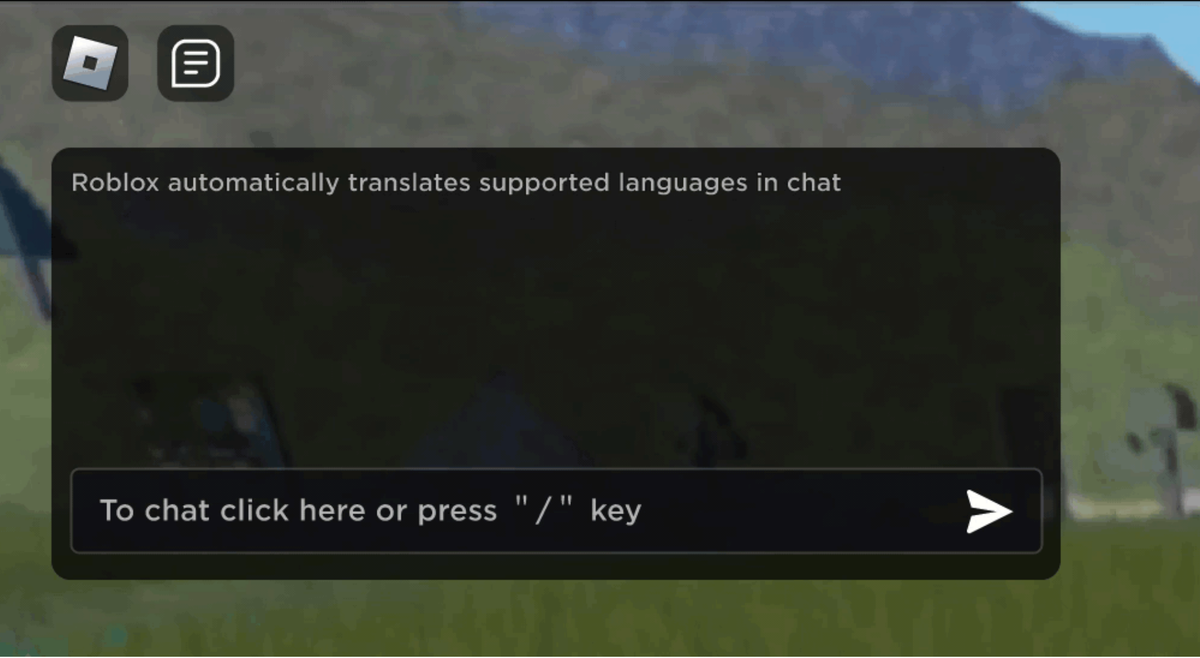
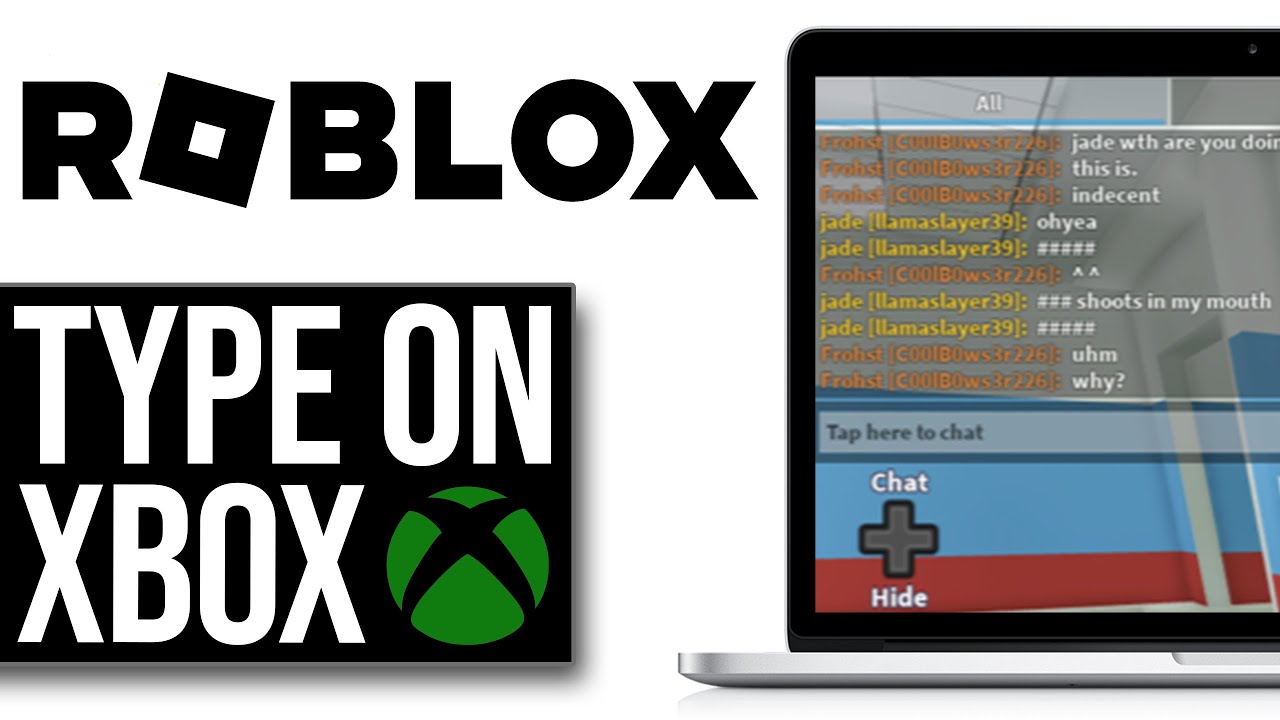
To open the chat in Roblox, on PC or Mac, simply press the forward slash (/) key. For mobile users (iOS/Android), tap the speech bubble icon typically located in the top-left or top-right corner of your screen. On consoles like Xbox, you'll usually press 'D-Pad Up' or a designated controller button to bring up the virtual keyboard and chat interface. Each method is designed for quick access, ensuring you can communicate effortlessly across platforms.
What are the privacy settings for typing in Roblox and how can I adjust them?
Roblox offers various privacy settings to control who can chat with you, accessible through your account settings on the website or app. Go to 'Privacy' and look for 'Who can chat with me in game?' or 'Who can message me?'. Options typically include 'No one', 'Friends', and 'Friends, Followers and people I Follow'. You can also control 'Who can chat with me in my private servers?'. Adjusting these helps manage unwanted interactions and ensures your chat experience is tailored to your comfort level.
Can I communicate with friends privately through typing in Roblox?
Yes, Roblox allows for private messaging with friends. You can send a direct private message to a friend through the 'Friends' section on the Roblox website or app, outside of a game. Within a game, if a friend is also present, you can often use the '/w [username] [message]' command in the chat box to whisper directly to them, ensuring your conversation remains private from other players in the game.
How do I send emotes or non-text chat messages in Roblox?
Beyond typing, Roblox offers various ways to send non-text messages. Many games feature a dedicated emote menu, often accessible via an on-screen button or by typing slash commands like '/e wave' or '/e dance' into the chat to make your avatar perform an action. Some games also implement 'quick chat' systems with pre-set phrases or contextual actions, allowing for rapid communication without the need for extensive typing.
What are common typing shortcuts or commands in Roblox chat?
The most common typing shortcut is the '/' key to open the chat window on PC. For in-game commands, '/me [action]' lets you narrate an action (e.g., '/me smiles'). The '/w [username] [message]' command is crucial for private whispers. While specific game commands vary, these universal slash commands significantly boost communication efficiency for experienced gamers, letting you interact without missing a beat.
Why is my text censored or filtered when I type in Roblox?
Your text is censored by Roblox's sophisticated chat filter, a mandatory safety system designed to protect all players from inappropriate content, personal information sharing, and bullying. Even seemingly innocent words can be filtered if they resemble forbidden phrases or if the system detects numbers. This filtering is stricter for accounts under 13. There is no legitimate way to bypass this system, as it is integral to maintaining a safe gaming environment.
How can I ensure my child types safely in Roblox?
To ensure safe typing for children in Roblox, utilize Parental Controls within the Roblox account settings. You can restrict chat to only 'Friends' or 'No One' for younger users. Additionally, educate your child about not sharing personal information and reporting any inappropriate messages using the in-game 'Report Abuse' feature. Roblox's filters are robust, but parental involvement and guidance are the most effective safeguards for online interactions.
For many adult gamers, Roblox is more than just a platform; it is a vibrant social hub, a creative outlet, and a source of well-deserved relaxation after a long day. Whether you are collaborating on an intricate build, navigating an adventure with friends, or simply unwinding in a cozy game, communication is often the invisible glue that holds these experiences together. However, fumbling with chat controls or being baffled by filters can quickly turn a fun session into a frustration. This guide is crafted for you, the dedicated gamer who balances work, family, and a passion for play, offering clear, actionable solutions on how to type in Roblox efficiently and safely, ensuring your gaming time is always maximized and enjoyable.
We understand that your time is valuable. You want to jump in, connect, and play without unnecessary hurdles. This article will equip you with the knowledge to master Roblox chat on any device, troubleshoot common issues, and utilize its features to enhance your social gaming experience. US gaming statistics this month show that approximately 87 percent of gamers play regularly, often dedicating 10 plus hours a week, with mobile gaming showing significant dominance. This highlights the importance of versatile and intuitive communication tools. Let us dive into making your Roblox chat experience as smooth as possible.
How Do I Open the Chat Window in Roblox on PC and Mac?
Opening the chat window on a PC or Mac is incredibly straightforward, allowing you to quickly engage with other players. To initiate chat, simply press the backslash key, which looks like a forward slash, usually located near your Enter key. This action will bring up a small text box at the bottom of your screen where you can type your message. Once you have finished typing, press the Enter key to send your message to the game chat. This quick shortcut is designed for efficiency, letting you communicate without pausing the action for too long.
For those using a game controller on PC, typically pressing the 'D-Pad Up' button or a designated button on your controller (often corresponding to an 'Up' arrow on the virtual keypad) will also open the chat interface. Familiarizing yourself with these shortcuts ensures you can communicate seamlessly, whether you are coordinating tactics in an intense game or simply chatting casually with friends.
What's the Easiest Way to Type in Roblox on Mobile Devices (iOS and Android)?
Typing on mobile in Roblox is optimized for touchscreens, making it accessible on the go. When you are in a game, look for the chat icon, usually represented by a speech bubble, located in a corner of your screen, often the top left. Tapping this icon will open the chat interface and bring up your device's virtual keyboard. From there, you can type your message as you would in any other app.
To send your message, simply tap the 'Send' button or the 'Enter' key on your virtual keyboard. Roblox's interface is designed to integrate smoothly with both iOS and Android keyboards, including predictive text and autocorrect features. While typing on a small screen can sometimes feel a bit slower than on a physical keyboard, this direct method ensures you can stay connected with your friends and fellow players no matter where you are playing. Recent trends indicate that mobile gaming continues to be a primary platform for social interaction, making mobile chat mastery essential.
Why Is My Chat Not Working or My Messages Being Censored in Roblox?
Experiencing chat issues or finding your messages censored can be frustrating, but there are several common reasons. Roblox employs a robust chat filtering system to ensure a safe environment for players of all ages. This filter automatically blocks inappropriate language, personal information, and anything deemed unsafe or against community guidelines. If your messages are consistently censored, try rephrasing them, avoiding numbers unless absolutely necessary (as they can sometimes trigger filters), and sticking to game-related communication.
Another common reason for chat not working relates to your account settings or age verification. Players under a certain age (typically 13) have stricter chat filters and may be limited to 'quick chat' options or only able to chat with friends. Ensure your account's birthdate is accurately set and verified if you are an older player expecting fewer restrictions. Network connectivity issues or temporary Roblox server problems can also prevent messages from sending, so check your internet connection and Roblox status pages if problems persist.
How Can I Use Quick Chat or Emotes Effectively for Faster Communication?
For those moments when you need to convey a message quickly without typing a full sentence, Roblox's quick chat and emote features are incredibly useful. Quick chat often appears as a menu of pre-set phrases like 'Hello!', 'Follow me!', or 'Need help!'. These options are especially helpful in fast-paced games or when playing on mobile where typing can be slower. To access quick chat, look for a specific icon or button in your game's interface, or sometimes it is integrated into the general chat window.
Emotes, on the other hand, are non-verbal expressions that your avatar can perform, such as waving, dancing, or cheering. While not direct communication, emotes add personality and can convey feelings or reactions visually. Many games have a dedicated emote menu, often accessible through a button or by typing slash commands like '/e wave' or '/e dance' into the chat box. Integrating quick chat and emotes into your gameplay allows for efficient, expressive communication, perfect for coordinating actions or simply having more fun with fellow players.
Are There Any Useful Chat Commands or Shortcuts I Should Know in Roblox?
Beyond opening the chat, Roblox offers several useful slash commands that can enhance your communication and gameplay experience. These commands are typed into the chat box, starting with a forward slash (/). While game-specific commands vary, some universal ones include:
- /me [action]: This command allows your message to appear as an action rather than direct speech (e.g., typing '/me waves hello' would show 'YourUsername waves hello').
- /w [username] [message]: To whisper or send a private message to a specific player. This is invaluable for discreet communication within a public game without others seeing your message.
- /clear: In some games, this command might clear your chat history for a cleaner screen, though its functionality can vary.
- /emote [animation] or /e [animation]: As mentioned, this triggers an avatar animation (e.g., '/e dance').
Learning these commands can significantly streamline your interactions, letting you perform actions or communicate privately without navigating complex menus. For busy adults, mastering these shortcuts means less time fiddling with controls and more time enjoying the game.
How Does Roblox's Chat Filtering System Protect Players and What Should I Know?
Roblox takes player safety very seriously, especially concerning communication. Its sophisticated chat filtering system is designed to protect users, particularly minors, from inappropriate content, harassment, and attempts to solicit personal information. This system automatically scans all messages in real-time and blocks or censors anything that violates community standards. For older players, this might sometimes feel restrictive, but it creates a safer environment for the platform's diverse user base.
Key things to know include:
- Age-Based Filters: Filters are strictest for accounts under 13, with some content appearing as '######' even if it seems innocuous. Older accounts have slightly looser filters, but strict moderation for personal info and profanity remains.
- No Bypass: There is no legitimate way to bypass the chat filter. Attempts to do so can lead to account warnings or bans.
- Continuous Improvement: Roblox continuously updates its filtering technology to catch new slang and evolving methods of inappropriate communication. This proactive approach helps keep the platform safe and aligned with current online safety trends.
Understanding the purpose and function of the chat filter helps manage expectations and encourages safer, more positive interactions within the Roblox community. This commitment to safety aligns with the growing emphasis on responsible online gaming, a top priority for adult gamers who value a positive community experience.
What Are the Best Practices for Safe and Respectful Communication in Roblox?
As a seasoned gamer, promoting a safe and respectful environment in Roblox chat is something you inherently value. Beyond understanding the filtering system, adopting best practices ensures positive interactions for everyone. Firstly, never share personal information like your full name, address, phone number, or social media handles. Roblox is designed to be anonymous, and protecting your privacy is paramount.
Secondly, always be respectful and kind. Harassment, bullying, or engaging in hate speech is strictly against Roblox's Terms of Service and can lead to severe penalties. Treat others as you would want to be treated. If you encounter inappropriate behavior, use the in-game reporting tools rather than engaging with the perpetrator. Roblox's robust reporting system helps moderators take action. Finally, be mindful of your language, even if you are not intentionally trying to bypass filters. Clear and positive communication contributes to a better experience for the entire community, reflecting the social and community-oriented nature that makes games like Roblox so appealing to adult players balancing busy lives.
How to Customize My Roblox Chat Experience for Better Accessibility?
For adult gamers who might spend hours navigating virtual worlds, optimizing the chat experience for comfort and accessibility can be a game-changer. Roblox offers some built-in options to tailor your chat. Within your Roblox settings, you can often find options related to chat visibility and text size. Increasing the text size, for example, can make conversations much easier to read, especially on smaller mobile screens or if you are gaming from a distance on a larger monitor.
Some games within Roblox may also offer their own unique chat customization settings, allowing you to change font colors or background opacity. Always check the individual game's settings menu for these specific options. While Roblox's core chat features are designed for broad accessibility, taking a moment to adjust these small details can significantly improve your long-term comfort and ensure that staying connected in Roblox remains a relaxing and enjoyable part of your gaming routine. It is all about making the platform work best for your individual needs.
Mastering how to type in Roblox is not just about technical know-how; it is about enhancing your entire social gaming experience. By understanding the simple commands, leveraging quick chat, and respecting safety protocols, you can communicate efficiently, connect meaningfully with friends, and enjoy the vast, creative world of Roblox without interruption. For adult gamers balancing life's demands, these practical tips mean more fun and less frustration, ensuring your precious gaming time is always well spent.
What is your biggest Roblox chat challenge or favorite communication tip? Comment below and share your insights with fellow gamers!
FAQ Section
Can I turn off the chat filter in Roblox?
No, Roblox's chat filter is mandatory and cannot be disabled. It is a core safety feature designed to protect all users, especially children, from inappropriate content and personal information sharing. The strictness of the filter can vary slightly based on the user's age setting (13+ accounts have slightly more leeway than under 13 accounts), but it is always active.
Why can't I type numbers in Roblox chat sometimes?
Roblox often filters numbers due to their potential use in sharing personal information like phone numbers or addresses. While some numbers might pass, the system is designed to err on the side of caution. Try typing out numbers as words if you need to convey specific quantities, but avoid sharing any personally identifiable numeric sequences.
Is Roblox chat available on all platforms?
Yes, Roblox chat is a fundamental feature available across all supported platforms, including PC, Mac, iOS, Android, Xbox, and PlayStation. The method to access and use the chat may differ slightly depending on the device, often involving a dedicated chat icon or a specific keyboard/controller button to open the input window.
How do I report inappropriate chat in Roblox?
To report inappropriate chat, click on the user's name in the player list or directly within the chat message itself, then select 'Report Abuse'. Follow the prompts to specify the reason for your report and provide context. This action helps Roblox moderators address violations and maintain a safe community for everyone.
What is the chat history limit in Roblox?
Roblox chat history is generally limited to recent messages displayed in the current game session. There is typically no long-term stored chat history accessible to players after they leave a game. For privacy and performance reasons, older messages scroll out of view and are not permanently saved for individual player access.
Do I need Roblox Premium to chat?
No, basic text chat functionality in Roblox is completely free and does not require a Roblox Premium subscription. All players, regardless of their membership status, can communicate using the in-game chat system, subject to the platform's filtering and safety guidelines.
Roblox chat basics, mobile typing tips, PC keyboard shortcuts, understanding chat filters, privacy settings, quick communication strategies, troubleshooting common chat issues, social gaming importance
35



Typing Game Roblox At Xavier Kirkby Blog . How To Type Emojis On Roblox PC YouTube . How To Type In Chat On Roblox Xbox In Game MUST Watch YouTube . How To Add People Roblox Easily Your 2026 Guide . How To Draw A Roblox Noob Super Easy Step By Step Guide For Kids How To Make A Roblox Game In 2026 Beginner Guide 1024x683


How To Type In Roblox YouTube . How Does The Roblox Push To Talk Button Work Effectively How To Enable Voice Chat In Roblox 2026.webp. Ready To Share How To Publish Your Roblox Game . How To Message On Roblox 2026 A Quick Guide . How To Message On Roblox 2026 A Quick Guide



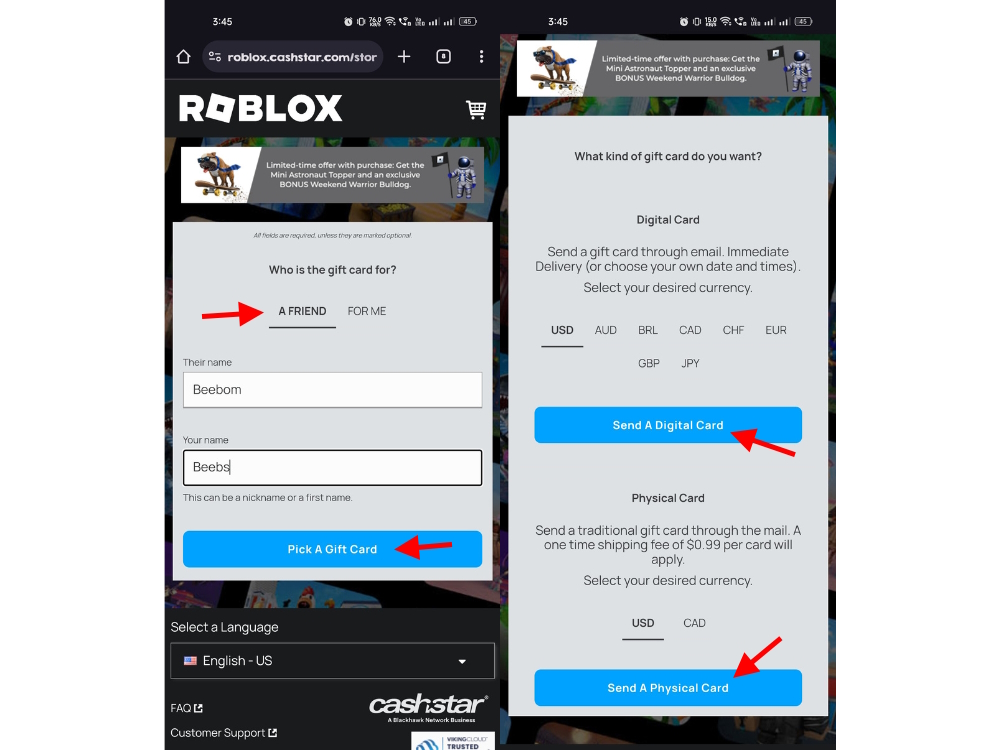
How To Message On Roblox 2026 A Quick Guide . How To Play All Game Modes In Roblox Knockout Screenshot 2026 02 21 085410 1 . Roblox Me Command What Does It Actually Do NoFilter. What Is Haptic Roblox A Player S Guide Oar2 . How To Give Robux To Friends On Roblox In 2026 Select Roblox Gift Card Type On Mobile Browser


How To Update Roblox In 2026 Fix Error Code 280 On PC Mobile Xbox Roblox Update It.webp. What Is Haptic Roblox A Player S Guide 2026 Parental Guide For Roblox Usage UnicMinds . Roblox Rolls Out Real Time AI Translation For All Users Is This The 1200 80 . How To Draw A Roblox Noob Super Easy Step By Step Guide For Kids How To Play Roblox Online 1024x683 . How Do I Type Roblox Sticker Sticker For Sale By Soyos Redbubble Bg,f8f8f8


How To Message On Roblox 2026 A Quick Guide . How Do You Pronounce Roblox Correctly For 2026 1200x1769 . How To Type On Roblox Wall YouTube . How To Type In Chat On Roblox Xbox In Game EASY YouTube . Roblox 2026 Logo REVEALED New Color New Look YouTube Maxres2


How To Message On Roblox 2026 A Quick Guide . Lessons MonzterDev Start Using Type Checking In Roblox Roblox Development Tips . How To Type Cursed Letters In Roblox Very Easy YouTube . How To Message On Roblox 2026 A Quick Guide . How Many Games Are On Roblox 2026 Updated Image




Roblox Chat Update 2026 Explained Mandatory Age New Roblox Chat Update 2026. 15 Game Roblox Horror Terbaik 2026 15 Game Roblox Horror Terbaik 2026 Paling Seram And Bikin Deg Degan 7f944699ce . How To Type In Chat On Roblox Xbox In Game 2025 UPDATE YouTube . How To Use Roblox Admin Commands 200 Commands 2026 How To Use Roblox Admin Commands 1024x559 . Is Roblox Getting Shut Down In 2026 The Real Truth Behind All Those Is Roblox Getting Shut Down In 2026 1024x683